Angle Sync
Angle Sync keeps the camera angles in a multi-angle game in step. Video 1 is the reference: for every other angle you record how far its own clock differs from video 1's, and Tagger applies that difference wherever the footage is played - in the Tagger, the Studio, the clip viewer, Analytics 360 and clip exports.
Use it when your angles came from separate cameras that were not started together, or when a recording has a break cut out of it. The video files are not changed: the alignment is stored with the game.
Angle Sync needs two or more video sources, and multi-video mode requires the Analyst Elite package. See Video Tagging for adding up to four sources to a game.
Where you have the choice, use Local File sources for a multi-angle game. Streamed sources can only be seeked to within a fraction of a second, and each angle is a separate download, so angles are harder to line up accurately and more likely to fall out of step during playback.
How Offsets Work
An offset is video 1's time minus the angle's time.
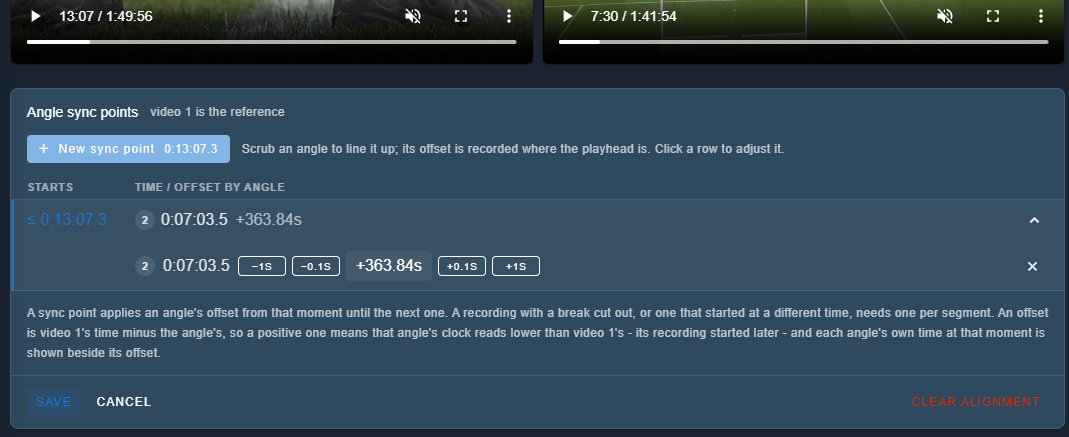
A positive offset means that angle's clock reads lower than video 1's, which happens when its recording started later. For example, if video 1 is at 13:07 and angle 2 has only reached 7:03 of its own recording, angle 2 started 6 minutes later and its offset is +363.84s.
An offset applies from the moment it is recorded until the next sync point on that angle. The first sync point also applies before it, because nothing earlier overrides it, so a single sync point covers the whole game. Add another sync point where the difference changes:
- An angle that started recording later than video 1 needs one sync point.
- An angle whose recording has a break cut out, or whose camera was stopped and restarted, needs one either side of the change.
Each angle is aligned on its own. One angle can have several sync points while another has one or none, and an angle with no sync points plays from its own recorded start.
Create a Sync Point
- Open the game in the Tagger.
- Turn on multi-view with the grid button in the video toolbar, then click Angle Sync. The button stays highlighted while Angle Sync is on, and the Angle sync points panel opens below the videos.
- Move video 1 to the moment you want to align on, such as a kick-off, a score or any frame you can pick out in every angle.
- Click New sync point. A row appears at that moment holding the offsets the angles have now, and opens for adjustment.
- Scrub an angle until it shows the same moment as video 1, or play it there and pause. Its offset is recorded as you seek and shown beside that angle's own time.
- Repeat step 5 for the remaining angles.
- Click Save.
While Angle Sync is on, the angles do not follow each other, so you can position one without moving the rest. All angles are paused when the panel opens.
New sync point is unavailable when a sync point already starts within a second of the video 1 playhead; edit that one instead. The row that applies at the playhead is highlighted, and a row flashes as offsets are recorded into it.
Add More Sync Points
Add a sync point wherever the difference between an angle and video 1 changes:
- Move video 1 to a moment after the change, for example the far side of a break.
- Click New sync point, then re-align each angle at that moment.
Everything before the new sync point keeps the offset it already had, so earlier adjustments are not disturbed.
Adjust an Offset
Click a row, or the pencil at the end of it, to open its editor. One row is open at a time, and it shows a line for each angle:
| Control | What it does |
|---|---|
| Angle time | Where that angle's player sits when video 1 is at the sync point. It changes as the offset is adjusted. |
| -1s / -0.1s / +0.1s / +1s | Nudges the angle's offset. Each press is applied immediately. |
| Offset | The offset itself, for example +363.84s. Click it to move that angle's video to the moment it refers to. |
| Δ | How much this offset differs from the angle's previous sync point. |
| ✕ | Removes that angle's sync point at this moment. A confirmation explains what the angle will use instead. |
Nudging a row that is not under the playhead moves video 1 to that sync point first. When Tagger moves an angle to apply an offset, that move is not recorded back as a new offset.
Click to Jump
- Click a sync point's start time to move video 1 to that moment.
- Click an angle's offset, in the row or in its editor, to move that angle's video to the time the offset refers to. This is a quick way to check an alignment without changing it.
Angles Missing From a Row
An angle with no offset at a sync point can be given one there. Under the editor, click Add a sync point here for angle 2 (or the angle number shown) to record that angle's offset at this moment as well.
Save, Cancel and Clear
- Save keeps the alignment with the game. An Unsaved changes chip in the panel header shows when there is something to save.
- Cancel, or switching to a single angle, offers to discard unsaved changes.
- Clear alignment removes every sync point, after a confirmation. No angle is shifted afterwards and all of them play from their own recorded start.
Where the Alignment Applies
The alignment is stored with the game and used wherever the angles play together:
- The Tagger, in multi-view and with a single angle selected.
- The Studio, including clip windows and exported clips, which are read from each angle's own file using the offset that applies.
- The event and clip viewer.
- Analytics 360 clip and playlist playback.
YouTube Angles
A YouTube stream can only be seeked to the nearest frame, so its offsets are approximate. They are close enough to keep angles roughly in step, but less exact than a local file. See Video Tagging for the sources Tagger supports.