Troubleshooting
Playback speed is twice the normal speed on my exported clip or playlist
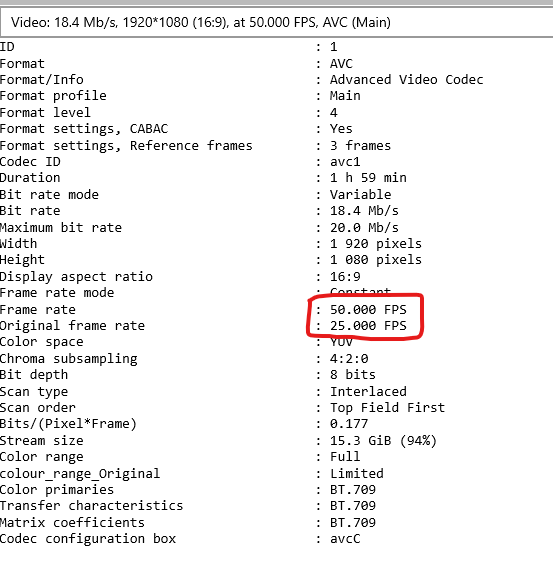
This issue can occur with certain source files, most commonly broadcast recordings. When you inspect the video metadata (for example, using the MediaInfo application on Windows), you may see two conflicting frame rate values:
- Original Frame Rate — for example, 25 fps
- Frame Rate — for example, 50 fps
This mismatch can cause a timing conflict during export in Studio, resulting in the exported clip playing back at approximately twice the intended speed.
Solution: transcode the source video
Transcode the source video before using it in Studio. See What is transcoding, and why does it help? for more detail. Recommended tools include:
- Trim & Copy in Tagger Desktop
- HandBrake
If you use Trim & Copy, set Video Quality to High, Medium, or Low — do not use the Copy setting, as Copy performs a stream copy rather than a full transcode and will not correct the frame rate metadata.
App crashes when exporting a large playlist
When exporting large playlists in the Tagger web application (typically 20 or more clips), the app may display a white screen and close unexpectedly. This behaviour is generally caused by resource constraints on the local device or browser rather than an application defect.
For demanding export workloads, we recommend a machine with at least:
- 4 CPU cores
- 16 GB RAM
Solution: reduce the export workload
To reduce resource pressure, split the large playlist into two or more smaller custom playlists and export them separately.
Alternatively, use Tagger Desktop to perform the export. The desktop application handles large workloads more efficiently than the browser-based version.
Drawing layer navigates to the wrong frame in the video
When working with clips that contain drawing layers, clicking a drawing icon in the timeline beneath the video player may cause the video to seek to an incorrect frame. This is caused by sparse keyframes in the source video file — the video player cannot seek precisely between keyframes, so it snaps to the nearest available reference point rather than the exact requested position.
See What is transcoding, and why does it help? above for a fuller explanation of why this occurs.
Solution: transcode for accurate seeking
Transcode the source video before using it in Studio. Recommended tools include:
- Trim & Copy in Tagger Desktop
- HandBrake
If you use Trim & Copy, set Video Quality to High, Medium, or Low — do not use the Copy setting, as it does not re-encode the video and will not resolve sparse keyframe issues.
What is transcoding, and why does it help?
Transcoding is the process of decoding an existing compressed video file and re-encoding it into a new file using a different (or the same) codec and settings. Unlike a simple stream copy — which repackages the compressed data without modifying it — transcoding fully re-processes every frame.
This matters because many source video files, particularly broadcast recordings and footage from cameras that use variable or long-GOP encoding, contain sparse keyframes. Keyframes are the reference points a video player uses to seek to a specific position. When keyframes are spread far apart, the player must decode a large number of intermediate frames to reach the requested position, which can cause imprecise seeking, incorrect frame display, or playback timing errors.
Transcoding with a high-quality setting produces a new file with dense, regular keyframes, which gives the player precise seek targets throughout the entire video. This resolves a range of issues including incorrect playback speed and inaccurate drawing-layer positioning.