Cleanse
The Cleanse tab lets you define find-and-replace rules that normalise event data before it feeds into measures, metrics, and visualizations. Inconsistent naming — different spellings of a team, variations of a player's name, or legacy event labels — can fragment your analysis. Cleanse rules eliminate these inconsistencies so every downstream calculation works from a single, standardised source of truth.
Cleanse rules only take effect after a Rebuild. After creating, editing, or deleting rules, click Rebuild in the Analytics 360 toolbar to re-process all loaded games with the updated rule set.
Overview
The Data Cleanse page operates in two modes: a list view showing all defined rules, and an editor view for creating or modifying individual rules.
List View
When rules exist, the list view displays a table with the following columns:
| Column | Description |
|---|---|
| Field | The type of value the rule targets — Player Name, Team Name, Event Name, Label Name, or Option Name. |
| Match | The matching strategy — Exact or Contains. |
| Pattern | The text to find. For player-scoped rules, also shows the team constraint. For event-scoped rules, shows any label or option filters. |
| Replacement | The text to substitute. A dash (-) means matched text is removed. |
| Priority | The rule's execution order. Lower numbers run first. |
| Enabled | Whether the rule is active. Disabled rules are ignored during rebuilds. |
| Actions | Edit or delete the rule via the kebab menu (⋮). |
Rules are applied in ascending priority order (lower numbers first), then by last update time where priorities tie. This means you can chain rules — for example, a priority-100 rule that normalises "FC Bayern" to "Bayern Munich", followed by a priority-200 rule that standardises "Bayern Munich" to "Bayern".
Empty State
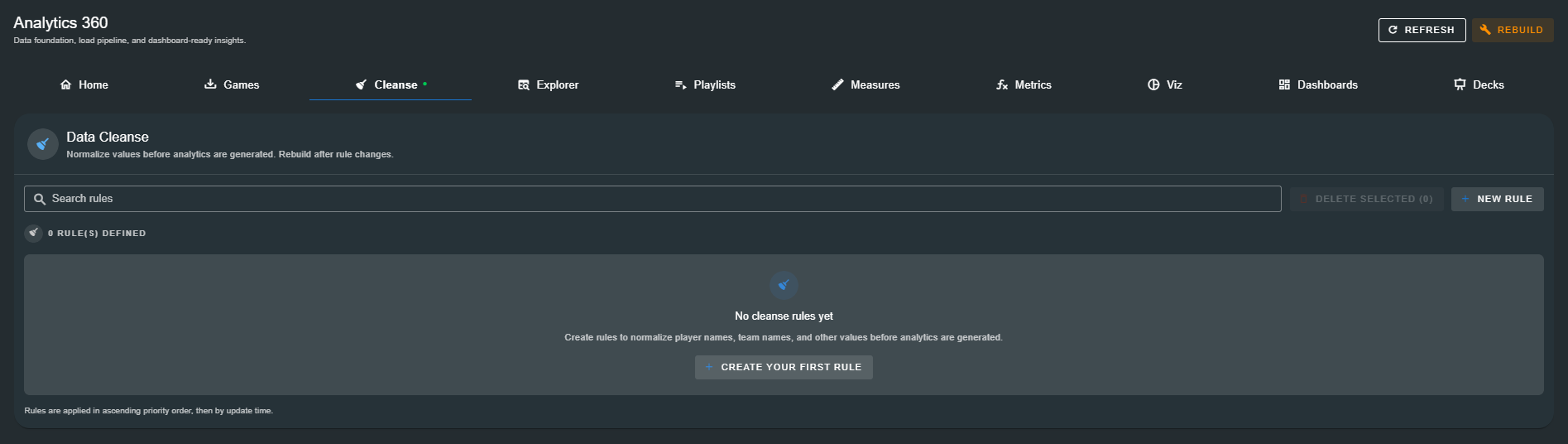
When no cleanse rules have been defined, the page displays a prompt to create your first rule. Click Create Your First Rule to open the editor.
Creating a Rule
Click New Rule (or Create Your First Rule when the list is empty) to open the rule editor.
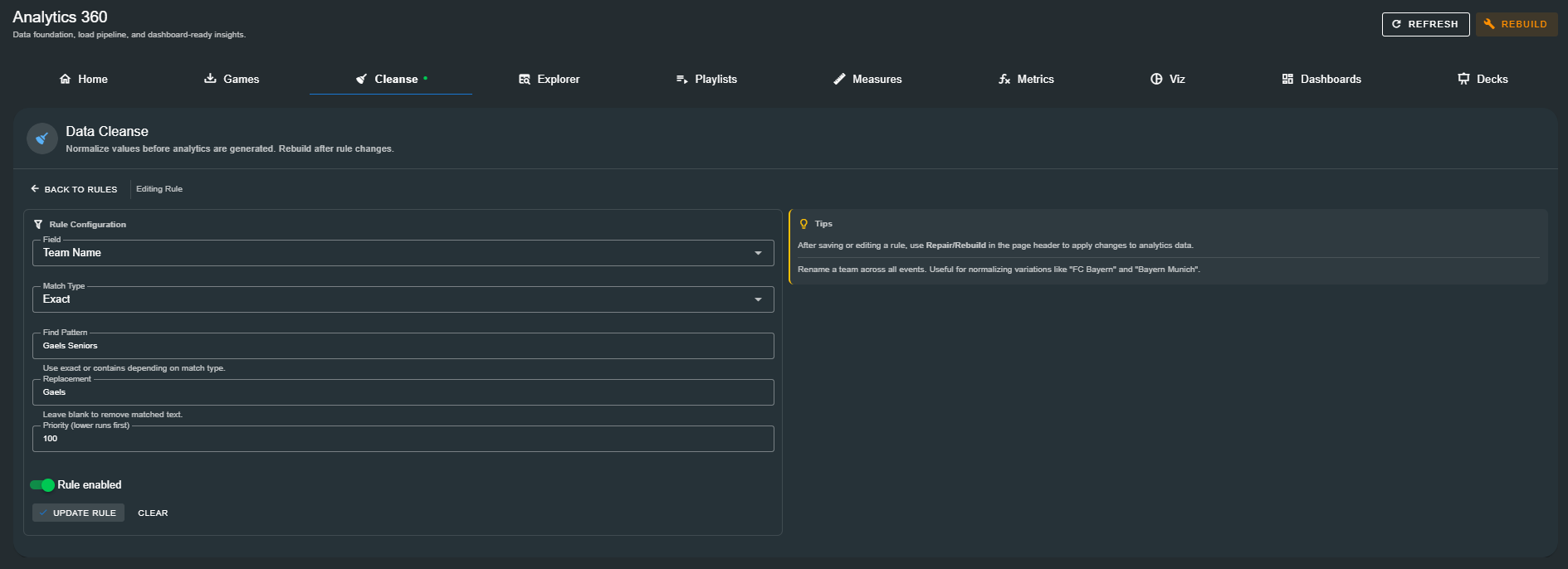
Rule Configuration
The editor provides the following fields:
Field
The type of data the rule operates on. Choose from:
| Field | What It Matches | Example |
|---|---|---|
| Player Name | Player names on tagged events | Standardise "J. Smith" → "John Smith" |
| Team Name | Team names across all events | Normalise "Gaels Seniors" → "Gaels" |
| Event Name | Event type names | Rename a legacy event to match your current config |
| Label Name | Label values attached to events | Standardise "Goal" / "goal" → "Goal" |
| Option Name | Option values within labels | Normalise "Left Foot" / "left" → "Left Foot" |
Event Name rules support additional scoping via Label and Option filters — narrow the match to only rename events that carry a specific label or option value.
Match Type
Determines how the pattern is compared against the target value:
| Match Type | Behaviour |
|---|---|
| Exact | The entire field value must equal the pattern. |
| Contains | The pattern can appear anywhere within the field value. |
For Event Name rules, the match type is always Exact because event names are matched as discrete identifiers rather than free text.
Find Pattern
The text to locate. For Exact matches, this is the full value to replace. For Contains matches, this is a substring that may appear anywhere in the target value.
When the Field is set to Event Name, this field is labelled Event Name to Match — select or type the exact event name you want to target.
Replacement
The text to substitute in place of the matched pattern. Leave this field blank to remove the matched text entirely — useful for stripping prefixes, suffixes, or unwanted qualifiers.
Team Scope (Player Name only)
When the Field is Player Name, an optional Team dropdown appears. Use this to limit the rule to players on a specific team. Leave it blank to apply the rule across all teams. This prevents accidentally renaming a "J. Smith" on Team A when you only meant to target the one on Team B.
Label & Option Scope (Event Name only)
When the Field is Event Name, optional Label Name and Option Name filters appear. These let you target a specific variant of an event. For example:
- Match event
Shotwith LabelOutcomeand OptionGoalto rename only goal-scoring shots. - Match event
Passwith LabelTypeand OptionCrossto isolate cross-field passes.
Leave these blank to match the event regardless of its labels or options.
Priority
A numeric value that determines execution order. Lower numbers run first. The default is 100. Use priority to sequence dependent rules — for example, run a broad normalisation at priority 100, then a more specific refinement at priority 200.
Rule Enabled
Toggle to activate or deactivate the rule. Disabled rules are preserved but skipped during rebuilds. Use this to temporarily suspend a rule without deleting it.
Tips Panel
The right-hand panel displays contextual guidance that changes based on the selected field type. It always includes the critical reminder:
After saving or editing a rule, use Repair/Rebuild in the page header to apply changes to analytics data.
Additional tips appear for specific field types:
- Team Name: "Rename a team across all events. Useful for normalizing variations like 'FC Bayern' and 'Bayern Munich'."
- Player Name: "Add a Team filter to limit this rename to players on a specific team."
- Event Name: "Use Label and Option filters to precisely target event types."
Saving and Applying Rules
Click Save Rule (or Update Rule when editing) to persist the rule to your cleanse configuration. The rule appears immediately in the list view, but it is not yet applied to your analytics data.
To activate the rule:
- Return to the list view.
- Click Rebuild in the Analytics 360 toolbar (the orange button visible on every tab).
- The rebuild re-processes all loaded games, applying every enabled cleanse rule in priority order.
You can create multiple rules before rebuilding. There is no need to rebuild after every individual change — batch your edits, then rebuild once.
Managing Rules
Editing a Rule
From the list view, click any row or use the kebab menu (⋮) and select Edit. The editor opens pre-populated with the rule's current configuration. Make your changes and click Update Rule, then rebuild to apply.
Deleting a Rule
Use the kebab menu (⋮) on any row and select Delete. Confirm in the dialog that appears. To delete multiple rules at once, check the desired rows and click Delete Selected (n).
Deleting a rule is permanent and cannot be undone. After deletion, rebuild to remove the rule's effects from your analytics data.
Searching Rules
The search bar at the top of the list filters rules by pattern text, replacement text, and field type. Use it to quickly locate a specific rule in large configurations.
Example: Normalising a Team Name
A common use case is standardising team names that appear inconsistently across games. For example, a team might appear as "Gaels Seniors" in early-season matches and simply "Gaels" in later ones.
To normalise this:
- Click New Rule.
- Set Field to Team Name.
- Set Match Type to Exact.
- Enter
Gaels Seniorsin Find Pattern. - Enter
Gaelsin Replacement. - Leave Priority at
100. - Ensure Rule enabled is toggled on.
- Click Save Rule.
- Click Rebuild in the toolbar to apply the change.
After the rebuild, all events tagged with "Gaels Seniors" will report under "Gaels" in the Explorer, measures, metrics, and every visualization.
Rule Execution Order
When multiple rules could match the same value, Analytics 360 resolves conflicts using a deterministic order:
- Priority — Lower numbers execute first.
- Update time — When priorities are equal, the most recently updated rule runs first.
This means a value is transformed sequentially through matching rules. Plan your priorities accordingly:
- Use low numbers (10–50) for broad, foundational normalisations.
- Use the default range (100) for typical renames.
- Use higher numbers (150–200) for refinements that depend on earlier rules.
Next Steps
With cleanse rules in place and a rebuild complete, your event data is ready for exploration: