Playlists
Playlists turn tagged events into curated video collections — ordered sequences of clips you can play back, reorder, and export as a single video file. Build playlists for team review sessions, individual player feedback, scouting reports, or any scenario where a focused set of match moments tells the story.
Overview
The Playlists tab manages your clip collections in two layers: a list view showing every playlist you have created, and a fullscreen player that opens when you click into a playlist.
List View
When playlists exist, the list view displays a table with the following columns:
| Column | Description |
|---|---|
| Name | The playlist name. Click any row to open the player. |
| Items | The number of clips currently in the playlist (e.g. "12 item(s)"). |
| Actions | Kebab menu (⋮) with Rename and Delete options. |
Above the table, a search bar filters playlists by name in real time. A count badge shows the total number of playlists (e.g. "3 Playlist(s)").
Empty State
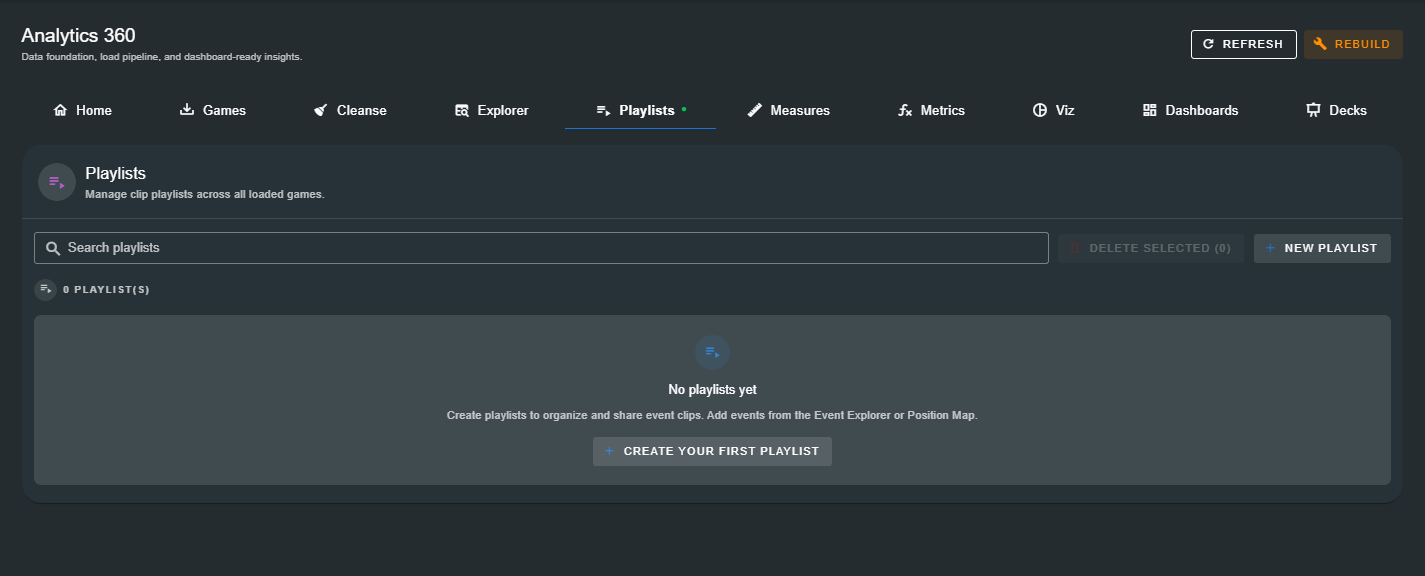
When no playlists have been created, the page displays a prompt to create your first one — with a reminder that clips can be added from the Event Explorer or Position Map.
Creating a Playlist
Click New Playlist (or Create Your First Playlist when the list is empty) to open the creation dialog.
- Enter a name for the playlist.
- Click Create (or press Enter).
The new playlist is created and opens immediately in the playlist player, ready for you to add clips.
Playlists start empty by design. Add clips from the Explorer video player dialog — click the Clip button on any event row, review the footage, then click ADD TO PLAYLIST to add it to an existing playlist or create a new one.
Managing Playlists
Renaming
From the list view, click the kebab menu (⋮) on any row and select Rename. You can also rename from inside the player via the More menu → Rename Playlist. Enter the new name and click Save.
Deleting
From the list view, click the kebab menu (⋮) on any row and select Delete. Analytics 360 checks whether the playlist is referenced by any presentation decks before allowing deletion. If the playlist is in use, the dialog shows which decks reference it and blocks the deletion until those references are removed.
Deleting a playlist is permanent and removes all clips it contains. If the playlist is embedded in any deck, you must remove it from those decks first.
Bulk Delete
Check multiple rows in the list view and click Delete Selected (n). The dependency check runs against all selected playlists — any that are in use are listed with the blocking decks, and only the safe-to-delete playlists are removed.
Searching
The search bar at the top of the list filters playlists by name in real time. Use it to quickly locate a specific playlist in large collections.
The Playlist Player
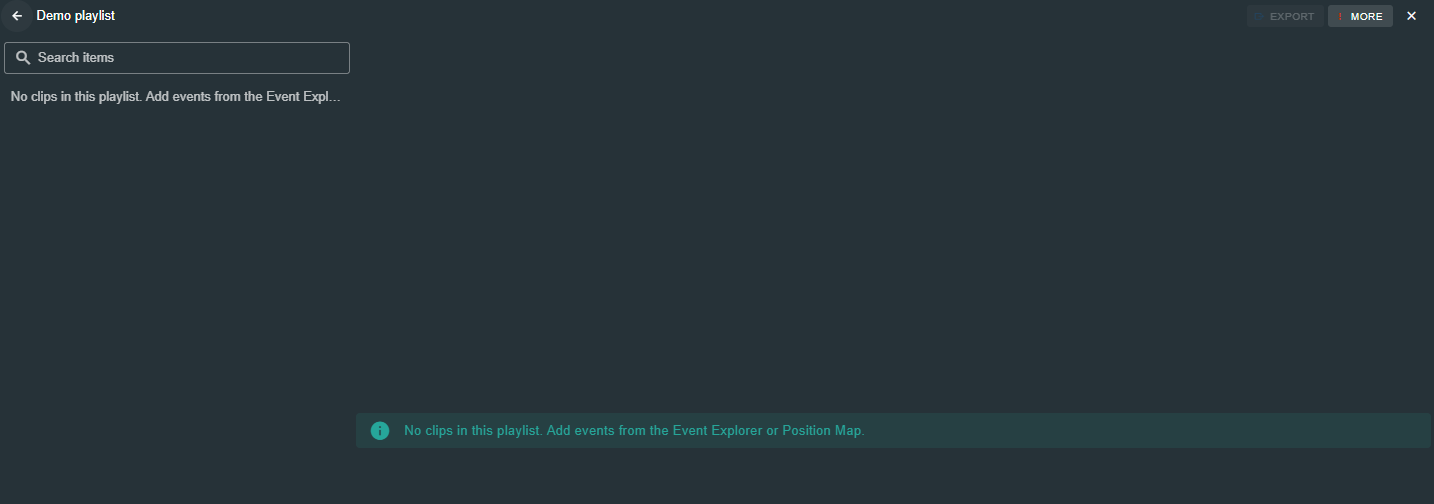
Clicking any playlist row opens the fullscreen playlist player — the primary workspace for reviewing, reordering, and presenting your clip collections.
Layout
| Zone | Description |
|---|---|
| Top Bar | Playlist name, clip position indicator (e.g. "3 / 12"), Export button, More menu (Rename / Delete), and close button. |
| Clip Queue (left sidebar) | A scrollable, searchable list of every clip in the playlist. Shows event name, game, period, and timestamp for each clip. Hidden when the playlist is empty — the empty-state message is displayed centred in the full player area instead. |
| Video Player (main area) | The playback area with event metadata chips, video controls, and optional multi-angle support. |
Clip Queue
The left sidebar displays every clip in the playlist. Each row shows:
- Status indicator — A play icon (▶) for the current clip, a checkmark (✓) for clips already played, or a number for upcoming clips.
- Event name — The event type (e.g. "Turnover Won", "Shot").
- Game, period, and time — Contextual metadata so you know exactly what you are watching.
- Remove button (✕) — Remove an individual clip from the playlist.
Click any clip to jump directly to it. Drag clips by the handle (⠿) to reorder them — the new order is saved automatically.
Use the search bar at the top of the queue to filter clips by event name, game, or player.
Video Playback
The main area plays the clip associated with the selected queue item. Above the video, metadata chips display the event's period, name, team, player, and game.
Source Selection
If multiple video angles are linked to the game, numbered source buttons appear below the metadata. Click a source number to switch to that angle. When two or more sources are available, a Grid button enables multi-view mode — all angles play side by side in a synchronised grid.
Multi-view playback is ideal for comparing angles of the same moment — for example, a wide tactical view alongside a close-up follow cam. All angles remain synchronised during playback.
Playback Controls
| Control | Description |
|---|---|
| ⏮ Previous | Jump to the previous clip in the queue. |
| Play / Pause | Start or pause playback of the current clip. |
| Mute / Unmute | Toggle audio. |
| Replay | Restart the current clip from the beginning. |
| Next ⏭ | Jump to the next clip in the queue. |
| Auto-advance | When enabled, the player automatically advances to the next clip when the current one finishes. |
Clip Range
A range slider below the video lets you trim the playback window. Drag the handles to set custom start and end times for the current clip — useful for isolating a specific moment within a longer event. The current range is displayed as timestamps on either side of the slider.
Drawing Layers
If the event includes drawing overlays (annotations drawn on the video during tagging), a layer timeline appears below the range slider. Drawing layers are displayed as pink chips at their respective timestamps. When playback is paused, any Konva drawing overlays are rendered on top of the video.
Exporting a Playlist
The Export button in the player toolbar opens the export dialog, which renders the entire playlist as a single MP4 video file.
Only local video clips can be exported as part of a playlist. YouTube-sourced clips cannot be exported because they are streamed rather than stored locally.
Export Options
| Option | Description |
|---|---|
| Output Folder | Click the folder card to select where the exported .mp4 file is saved. |
| File Name | The name of the output file (.mp4 appended automatically). |
| Include clip details overlay | When enabled, each clip in the exported video includes a text overlay showing the event name, player, game, and period — ideal for sharing with coaches or players who need context on each clip. |
| Show teamoppy.com watermark | When enabled, a Teampoppy watermark is rendered on the exported video. Disable this if you have a Studio licence that permits watermark-free exports. |
| Include audio from the original video | Off by default, so the exported video is silent. Switch it on to keep each clip's audio. The audio is normalised to 128 kbps stereo so every clip can be joined into one continuous track, and it pauses while a drawing overlay is held on screen so it stays in step with the picture. |
Include audio from the original video applies to the export you are about to run. It is not remembered for the next one.
Export Progress
Once you click Export Playlist, the dialog shows real-time progress:
- Current clip number and total (e.g. "Clip 3/12")
- Overall progress bar with percentage
- A Cancel Export button to stop the process
When the export completes, a success message appears with a checkmark. If an error occurs, the dialog surfaces the error details.
Exports include any drawing overlays (Konva annotations) that were drawn on the events during tagging. This means your exported video preserves tactical markups, player circles, and arrow annotations — ready for sharing.
Next Steps
Playlists sit between exploration and presentation in the Analytics 360 pipeline: